

To configure this connector you need to enable https://learn.microsoft.com/en-us/purview/audit-log-enable-disable and register an application in https://www.microsoft.com/en-us/security/business/identity-access/microsoft-entra-id.
Once the application is registered, follow the below steps:
- Note Application (client) ID and the Directory (tenant) ID in the registered application’s Overview page.
- Create a new secret to configure the authentication of your application.
- Navigate to Certificates & Secrets section.
- Click New client secret and provide some description to create new secret.
- Note the Value which is required for the integration setup.
- Add permissions to your registered application. Please check https://learn.microsoft.com/en-us/office/office-365-management-api/get-started-with-office-365-management-apis#specify-the-permissions-your-app-requires-to-access-the-office-365-management-apis for more details.
- Navigate to API permissions page and click Add a permission
- Select Office 365 Management APIs tile from the listed tiles.
- Click Application permissions.
- Under ActivityFeed, select ActivityFeed.Read permission. This is minimum required permissions to read audit logs of your organization. Optionally, select ActivityFeed.ReadDlp to read DLP policy events.
- Click Add permissions.
- If User.Read permission under Microsoft.Graph tile is not added by default, add this permission.
- After the permissions are added, the admin has to grant consent for these permissions.
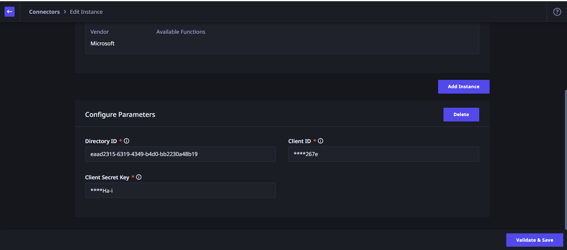
- Once the secret is created and permissions are granted by admin, add the client id, client secret and directory id (tenant id) while configuring the connector and click on validate and save.
- After the successful configuration, it takes up to 12 hours for generating the events which in turn is used for alert generation.